elementary OS 8.1.1
Available downloads
Choose the image that matches your architecture and use case.
Desktop
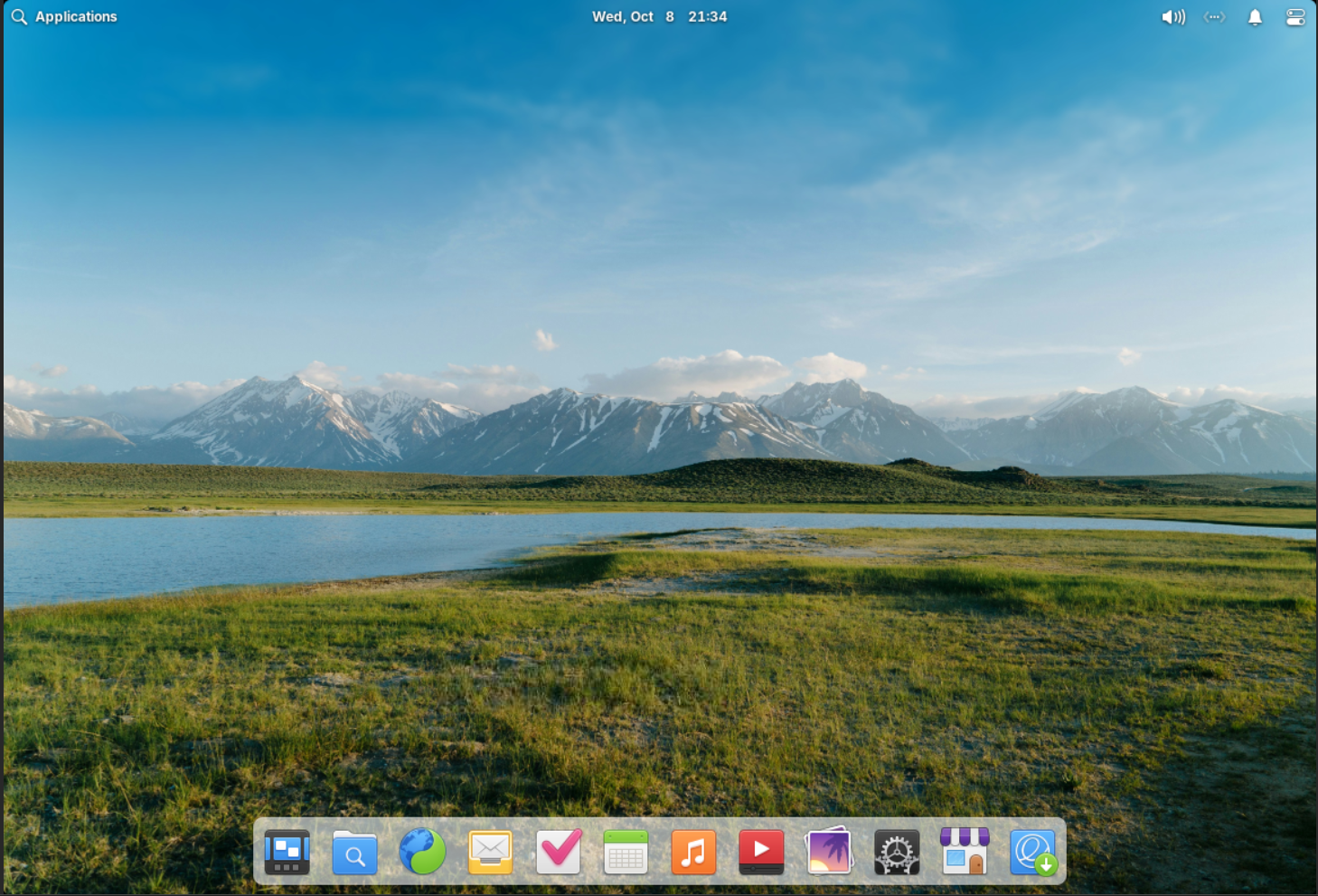
Reference screenshot; point releases may differ. elementary, Inc.; uploaded by Ahunt · Source · GNU GPL v3 (see source)
Description
elementary OS is an Ubuntu-based desktop distribution centred on a coherent Pantheon environment, curated applications and privacy-conscious design. elementary OS 8.1.1 Circe provides installation images for modern Intel or AMD 64-bit computers and ARM64 devices.
Who is elementary OS for?
elementary OS is primarily suited to people moving from Windows or trying Linux for the first time; daily desktop use, study, web browsing and productivity. Before choosing it, compare the current release lifecycle with the length of support required for the machine. This distribution is based on ubuntu, which influences package formats, repositories and much of the available documentation. The listed desktop environment is Pantheon; confirm its memory, graphics and accessibility requirements on the official project site. The best choice depends on hardware support, preferred software, update policy and the amount of system administration the user wants to perform.
Before installing
Read the release notes and installation guide before downloading. Select an image that matches the processor architecture and intended use: desktop, server, live media, virtual machine or another published edition. Test Wi-Fi, graphics, audio, storage and suspend from live media when that option is available. Back up important files before repartitioning, encryption changes or dual-boot installation. Download from an official project page or mirror, compare the published SHA-256 checksum, and verify a signed checksum when the project provides one. After installation, apply updates before adding third-party repositories or drivers.
Advantages
- Designed to provide an approachable installation and everyday desktop experience.
- Benefits from the package ecosystem and documentation associated with its ubuntu lineage.
Limitations
- Hardware support, upgrade policy and available editions should be confirmed in the current official documentation.
Distribution details
- System type
- linux_distribution
- Based on
- ubuntu
- Desktop
- Pantheon
- Updates
- Stable releases
- Categories
- desktop, beginner
Installation requirements
- Architectures
- x86_64arm64
- Memory
- Not yet verified
- Storage
- Not yet verified
- Firmware
- Consult the installation guide
Requirements vary by desktop edition and installer. Confirm graphics, firmware, memory and free-space requirements in the current official installation guide.
Safe download
The download button first records an anonymous aggregated download counter and then redirects to the official source.
After installing elementary OS
Six post-installation checks based on project documentation. Commands are examples for your own system, not an automatic installation script. Review your edition and current release notices first.
Update the operating system in Settings
For OS 8, use System Settings for operating-system updates and follow the restart prompt. App updates are managed separately in AppCenter.
Before you continue: Save work and keep a backup before applying system updates.
Read project documentation: Update the operating system in SettingsInstall and update apps in AppCenter
Browse AppCenter for the applications you need and check its app updates separately from operating-system updates.
Read project documentation: Install and update apps in AppCenterEvaluate external Flatpak sources
Use Sideload only for software from a source you trust. Third-party, non-curated apps do not receive the same elementary review.
Before you continue: Review the application publisher and requested permissions.
Read project documentation: Evaluate external Flatpak sourcesConfigure displays and input
Use System Settings to set display arrangement, keyboard layout and pointer behaviour. Verify the result before changing several options at once.
Read project documentation: Configure displays and inputLearn workspace navigation
Try the multitasking view and configure workspace shortcuts in Keyboard settings to suit your workflow.
Read project documentation: Learn workspace navigationKeep a personal-file backup
IsosLinux precaution: copy important documents to a separate destination and test opening the copy before installing additional software or making major changes.
Read project documentation: Keep a personal-file backup