Ubuntu 26.04.1 LTS
Available downloads
Choose the image that matches your architecture and use case.
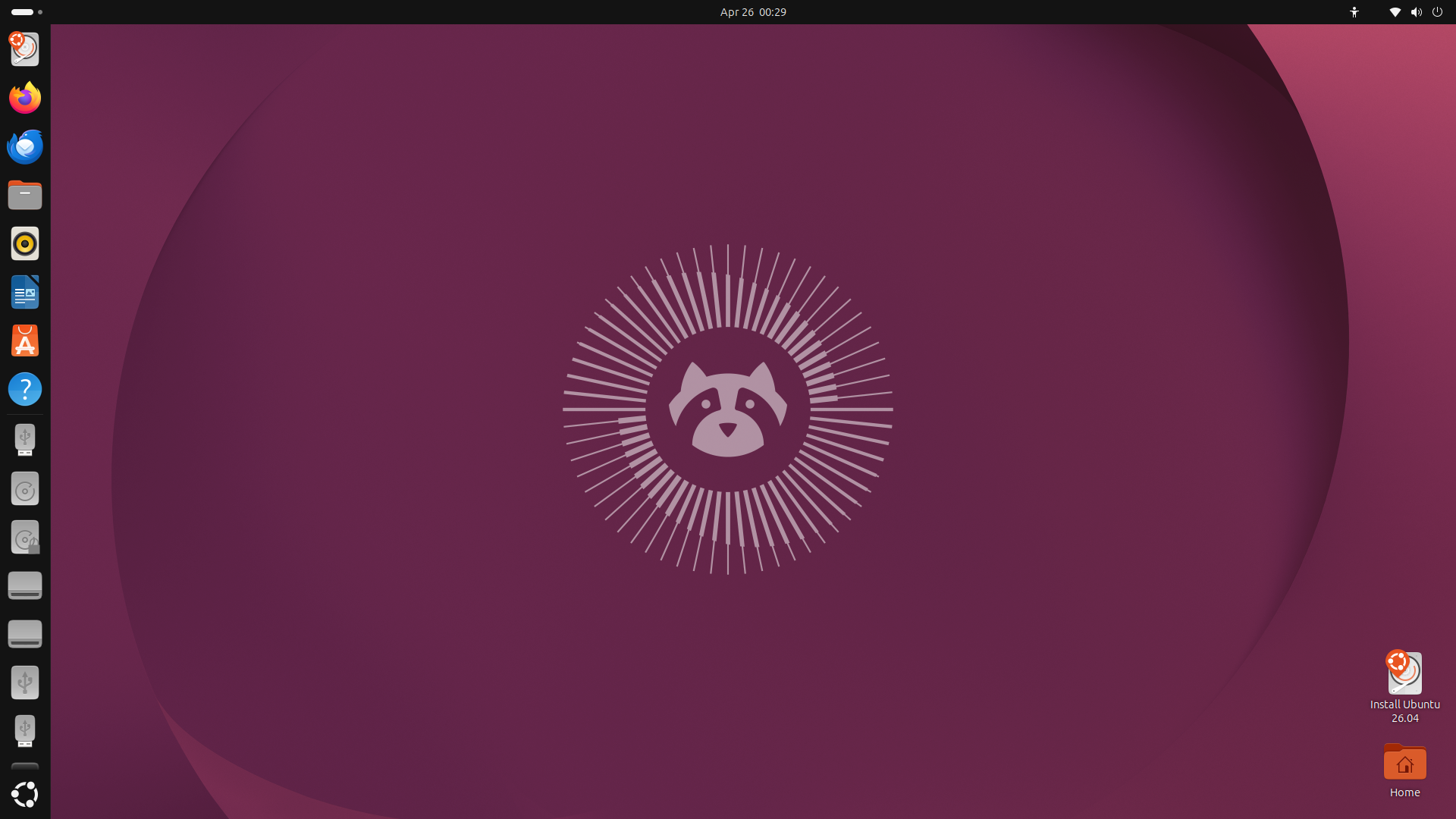
Reference screenshot; point releases may differ. Canonical Limited; uploaded by Ahunt to Wikimedia Commons · Source · GPL-2.0-or-later
Description
Ubuntu is a Debian-derived distribution developed by Canonical and its community for desktops, servers, cloud platforms and containers. Ubuntu 26.04.1 LTS Resolute Raccoon is the current long-term-support desktop release and receives five years of standard security maintenance.
Who is Ubuntu for?
Ubuntu is primarily suited to people moving from Windows or trying Linux for the first time; daily desktop use, study, web browsing and productivity; servers, virtual machines and self-hosted services. Before choosing it, compare the current release lifecycle with the length of support required for the machine. This distribution is based on debian, which influences package formats, repositories and much of the available documentation. The listed desktop environment is GNOME; confirm its memory, graphics and accessibility requirements on the official project site. The best choice depends on hardware support, preferred software, update policy and the amount of system administration the user wants to perform.
Before installing
Read the release notes and installation guide before downloading. Select an image that matches the processor architecture and intended use: desktop, server, live media, virtual machine or another published edition. Test Wi-Fi, graphics, audio, storage and suspend from live media when that option is available. Back up important files before repartitioning, encryption changes or dual-boot installation. For production deployment, verify application compatibility, upgrade paths, backup restoration and the project security-support policy in a non-production environment first. Download from an official project page or mirror, compare the published SHA-256 checksum, and verify a signed checksum when the project provides one. After installation, apply updates before adding third-party repositories or drivers.
Advantages
- Designed to provide an approachable installation and everyday desktop experience.
- Offers installation or deployment options intended for server and infrastructure workloads.
- Fits managed environments that value documented maintenance and predictable operational practices.
Limitations
- Some repositories, support services or downloads may require registration or a commercial entitlement.
Distribution details
- System type
- linux_distribution
- Based on
- debian
- Desktop
- GNOME
- Updates
- Long-term support (LTS)
- Categories
- desktop, server, beginner, enterprise
Installation requirements
- Architectures
- amd64
- Memory
- 6 GB minimum
- Storage
- 25 GB minimum
- Firmware
- USB or DVD boot support; Internet access is helpful.
Ubuntu Desktop 26.04 LTS figures. Server requirements differ by workload.
Safe download
The download button first records an anonymous aggregated download counter and then redirects to the official source.
After installing Ubuntu
Ten practical checks for Ubuntu Desktop 26.04.1 LTS with GNOME. Commands are instructions for your own computer, not this website. Ubuntu Server, Core and other flavours need different workflows.
Protect your personal files
Make a backup of documents, photos and other irreplaceable files on a separate device or trusted backup service. Restore a sample file before relying on it.
Before you continue: Keep the backup destination separate from the disk you are protecting.
Read project documentation: Protect your personal filesInstall available package updates
Refresh the package list, then review and install updates for the installed release. These commands do not upgrade Ubuntu to a different release.
Before you continue: Save your work, read the proposed changes and keep the computer powered on. Restart when Ubuntu requests it. Stop if refreshing the package list fails.
Read project documentation: Install available package updatessudo apt update sudo apt upgradeCheck automatic security updates
Review the unattended-upgrades documentation and your update policy. Keep security updates enabled and choose a restart time that will not interrupt your work. Automatic updates do not remove the need to check occasional update errors.
Before you continue: On managed computers, follow your administrator's policy instead of replacing it.
Read project documentation: Check automatic security updatesCheck whether NVIDIA drivers are needed
If your computer has NVIDIA graphics, list the drivers offered by Ubuntu. The command below only lists choices. Follow the official desktop instructions if you need to install a driver; skip this step on other hardware.
Before you continue: Do not copy a driver version from an unrelated guide. Secure Boot may require key enrollment; read the prompts rather than disabling it.
Read project documentation: Check whether NVIDIA drivers are neededsudo ubuntu-drivers listChoose your everyday applications
Open App Center and search for the applications you need. Check the publisher and package format before installing; an application may be offered as a snap or Debian package. Start with a small selection you actually use.
Before you continue: Avoid installing unfamiliar scripts or adding repositories simply to follow a generic checklist.
Read project documentation: Choose your everyday applicationsMake the display comfortable
Open Displays in Settings. Check the monitor arrangement, resolution, scaling and refresh rate. Apply changes and confirm them only if text and windows remain usable.
Before you continue: When testing a new display configuration, keep a way to return to the previous settings.
Read project documentation: Make the display comfortableSet power and suspend preferences
Review the available power profiles, screen blanking and automatic suspend settings. On a laptop, test waking from suspend before depending on it during travel.
Before you continue: Save open documents before testing suspend. Available power profiles depend on the hardware.
Read project documentation: Set power and suspend preferencesProtect an unattended session
In Privacy & Security, review automatic screen locking. Choose a delay appropriate for where you use the computer and test that returning to the session requires authentication.
Before you continue: Screen locking protects an unattended session; it is not a replacement for backups or disk encryption.
Read project documentation: Protect an unattended sessionReview history and location preferences
In Privacy & Security, decide whether to retain recently used file history and whether location services are needed. Choose settings that match your use rather than accepting a one-size-fits-all privacy preset.
Before you continue: Check what will be removed before clearing history or enabling automatic file cleanup.
Read project documentation: Review history and location preferencesReview the firewall before enabling sharing
Check UFW status before deciding which network services to expose. An inactive result is possible on a default installation; it is not proof of an intrusion. The command below only reports the current policy.
Before you continue: Do not enable or change firewall rules over a remote session without preserving access. Consult the documentation before allowing ports.
Read project documentation: Review the firewall before enabling sharingsudo ufw status verbose